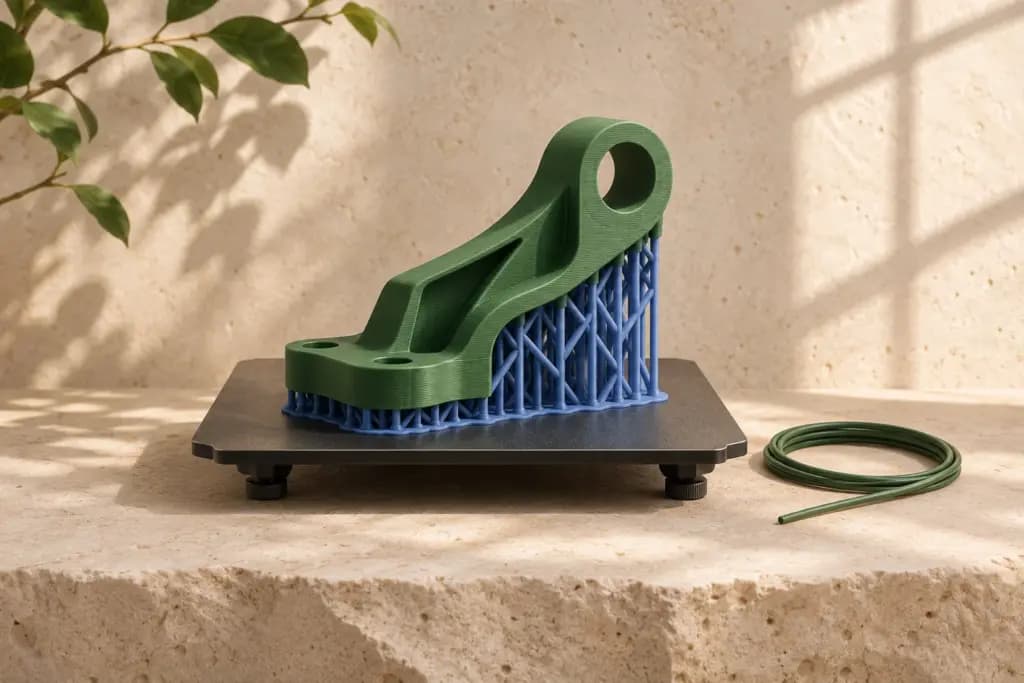
A slicer turns a model into the toolpaths a 3D printer executes. Its choice of orientation, walls and supports can change print time, material use and whether a surface needs rework. Start with the exact printer, nozzle and filament combination you use. A slicer with a convincing feature list is less useful if it takes a day to recreate a reliable profile every time you change machines.
What your slicer has to produce
This comparison concerns desktop filament printing. A model can originate in any design tool, but the generated instructions are usually specific to the machine and profile. A familiar interface matters less than being able to explain which settings produced a part and to make the same job again later. For the upstream work of making editable models, see our 3D CAD software comparison.
Most of the tools below are free desktop slicers. Simplify3D sells a license. Fees are only one cost. Allow for time spent making material presets and training operators, waste when a profile goes wrong, and the work of storing and migrating known-good project files.
The quick difference
| Product | Best fit | Main strength | Watch for |
|---|---|---|---|
| PrusaSlicer | Prusa workflows and local slicing | Separate printer, material and print settings | Check how much tuning non-Prusa profiles need |
| UltiMaker Cura | UltiMaker and supported mixed fleets | Material and printer profiles with a flexible settings interface | Confirm exact machine and firmware coverage |
| OrcaSlicer | Operators who tune different printer families | Built-in calibration tools and detailed controls | Review community profiles before sending output |
| Bambu Studio | Bambu Lab workflows and multi-plate jobs | 3MF project preparation with printer integration | Check network and model-specific restrictions |
| Simplify3D | Shops that want a paid process-based workflow | Different settings within a part or across a job | USD 199 per user; check activation and upgrade terms |
PrusaSlicer
PrusaSlicer is an open-source desktop tool based on Slic3r. Prusa documents support editing, separate settings for print, filament and printer, and local slicing. The division makes it easy to explain why a PETG profile stays the same when you change the layer height or select a printer with a different bed. Its Prusa profiles make it a sensible starting point for shops that already use that hardware.
Slicing locally is separate from how you transfer a job. Confirm whether your printer accepts removable media or a local network transfer and whether your particular upload route depends on internet access. For a non-Prusa device, check the exact nozzle and firmware in the available profiles. Compare layer previews around fine walls, bridges and support interfaces before taking a downloaded preset as the shop standard.
UltiMaker Cura
Cura is a free, open-source desktop slicer. UltiMaker publishes the software and the project source, and its product page describes available printer and material presets. It is useful when an operator wants a sensible starting profile and access to finer settings as a job needs them. For a team with several types of filament, save the actual material profile rather than assuming the name picked in the dropdown contains every adjustment.
Confirm what the printer definition covers. A supported model or material does not ensure that your nozzle, extrusion hardware or firmware is represented exactly. If Cura connects to a printer or a wider fleet workflow, separate what happens on your workstation from any network or account features. When upgrading, open a saved project and check that overrides carry over before replacing a production installation.
OrcaSlicer
OrcaSlicer is an open-source project with calibration tools and detailed adjustments for walls, seams and supports. Its repository and wiki document multiple printer families and exercises for tuning a setup. It is a strong candidate for operators who work across several machines and want a repeatable way to establish, review and record a profile rather than accepting an unexplained preset.
More controls increase the need to record the baseline. Change one dimension at a time, note which printer and filament the change affects, and leave the original profile available. Some definitions are community maintained. Check bed dimensions, printable area, extrusion details and how the slicer knows when a tool change occurs. Verify network compatibility on each exact device instead of assuming that two printers with similar names accept jobs in the same way.
Bambu Studio
Bambu Studio is Bambu Lab’s open-source desktop slicer, based on PrusaSlicer. Its official product page describes 3MF projects, multiple build plates and project organization. These features are useful for assemblies where related parts need to be arranged on several plates without losing the connection to the overall project. The desktop slicing tools and the route used to send work to a printer are two distinct things.
If printing through a Bambu device, check your model, firmware, account requirements and available local or remote modes. In a workplace with network restrictions, practice exporting and transferring an ordinary job before relying on any connected workflow. Other printer profiles exist, but compare their capabilities individually. Keep a complete project as well as any exported toolpath to preserve settings that matter when you later revise the original part.
Simplify3D
Simplify3D sells desktop print preparation software. Its process model can apply different settings to regions of a part, and the vendor describes customizable supports and layer previews. A shop may value this workflow if it repeatedly tunes the same difficult surface or support interface. Test whether an operator can explain the settings behind one complex result and reproduce it on the next shift using the stored project.
The published standard price is USD 199 per user. The purchase page distinguishes a single-user license that requires internet access from separately offered floating or offline arrangements. It also describes a discounted upgrade path for eligible existing customers. Verify activation, version rights and continuity when a workstation changes. If your exact machine is missing or the network rules are strict, check compatibility and the applicable license before paying.
How to choose a slicer
Use two actual jobs. Start with one simple part that can reveal an obvious profile problem, then select a part with your usual support or finish challenge. Keep printer, filament, nozzle and layer height the same. Review the layer preview before printing. Record material use and estimated time as estimates, and compare them with the observed results only after printing the same trial on the intended hardware.
For a shared shop, turn the winning configuration into a handoff. Give the next operator the project, packaged profile and notes on the printer’s exact configuration. Ask them to open, review and produce it without consulting the operator who created it. Keep the slicer version with the record. If a profile update changes the toolpath, you can then identify when it changed and compare the two jobs.
For jobs you repeat, compare the editable project and the toolpath as two distinct deliverables. The first should show how the result was made, including profile overrides. The second should be associated with one approved machine configuration. If the project depends on a shared profile, save its version or export it with the job. That gives another operator a concrete starting point even if the slicer’s default library has changed.
Selection checklist
Confirm the printer, firmware, nozzle, filament and operating system. Save and reopen a project with its overrides. Check support removal, surface quality and first-layer behavior on an ordinary job. Confirm the job transfer route and how it behaves if the printer is offline. Keep the editable model and slicer project separate from the machine-specific file so the part can be reviewed later.
Which slicer fits your printer?
Try PrusaSlicer first for a Prusa-centered local workflow, Cura for its supported printer and material profiles, and OrcaSlicer when calibration is central across multiple machines. Bambu Studio is the natural candidate when Bambu printer integration and multi-plate work matter. Consider Simplify3D if its process controls and license arrangements solve a specific shop problem. Adopt the one your team can use to reproduce a result and explain the settings that made it possible.
References
Official sources checked November 14, 2026.