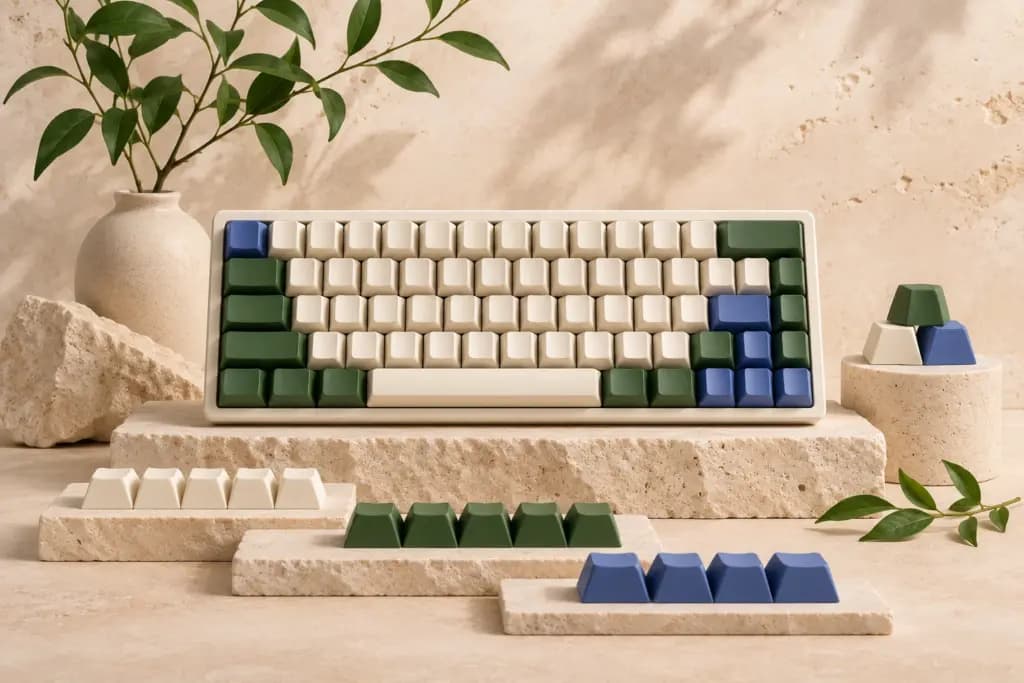
Keyboard remapping can be as simple as moving Escape to a more comfortable key, or as involved as making a laptop keyboard behave like a programmable board. The tools here cover both. The right one depends on whether the substitution belongs to a single app, the whole desktop or a particular physical device, and whether a key should act differently when you tap or hold it.
Start by describing the behavior without naming a tool. For example, a designer might need an awkward shortcut under one hand in one application. A developer switching machines might want the same navigation layer on an external keyboard at every desk. Those are different jobs, even if both start with the same key. All five tools can be obtained without a recurring subscription; the real differences are platform support and how much configuration you want to maintain.
The quick difference
| Product | Best fit | What you get | What to check |
|---|---|---|---|
| PowerToys Keyboard Manager | A few Windows substitutions | Graphical key and shortcut rules | PowerToys must be running; check elevation |
| Karabiner-Elements | Detailed control on macOS | Simple mappings, conditions and complex modifications | Approve required permissions and check macOS compatibility |
| AutoHotkey | Context-sensitive Windows shortcuts | Scripted remaps and conditions based on the active window | Use v2 syntax and maintain the script |
| keyd | Linux input mapping below the desktop | Daemon, device matching and layers | Requires compatible Linux input access and service setup |
| Kanata | Layered layouts on multiple operating systems | Tap versus hold and reusable config concepts | Installation and input support vary by platform |
PowerToys Keyboard Manager
Microsoft’s Keyboard Manager is the most direct of these five choices for a small set of Windows substitutions. Its graphical interface lets you select keys or shortcuts, choose their new behavior, and review mappings without editing a file. Certain shortcut mappings can be targeted to an application. If the problem is reaching a command comfortably, a simple app-specific rule may be all the work you need.
The tool acts while PowerToys is running and Keyboard Manager is enabled. It does not change keyboard firmware, and Microsoft documents exceptions for reserved shortcuts, sign-in screens and some elevated windows. Verify compatibility with the Windows release and any workplace install policy. Use your real app for the trial: a rule that succeeds in a plain text editor may behave differently in a remotely streamed application or a game that processes input differently.
Karabiner-Elements
Karabiner-Elements is geared toward people who want control over macOS more detailed than a global modifier swap. Simple modifications handle straightforward key substitutions. Complex modifications cover rules with conditions and actions such as sending one event on a tap and another when a key is held. Device conditions can help preserve the behavior of a laptop keyboard while changing what an external board sends.
The tradeoff is learning how the tool represents key events and configuring system permissions. Check the supported release before upgrading macOS, and make time to test the same mapping with a keyboard that reconnects after sleep. For a shared setup, document which rules are essential and why they apply to particular devices. A copied complex rule can hide assumptions about physical layout, input source or modifiers.
AutoHotkey
AutoHotkey is a Windows scripting tool, so it suits remaps that depend on the active app or need to sit beside a broader hotkey workflow. Its v2 documentation distinguishes a straightforward remap from a hotkey that runs a function. The conditional directive lets you tie keyboard behavior to context. That is useful when a key should behave normally in most programs and trigger a special action in one editor.
Scripts keep the mappings readable in version control but raise the maintenance cost of a small change. Use the v2 documentation when maintaining a v2 script; copying snippets written for an earlier major version can lead to syntax or behavior differences. Check key repeat, modifiers and focus changes before adding anything more complex. If you only need a few fixed substitutions, a GUI may be easier for another person to troubleshoot.
keyd
keyd is a Linux system daemon that works through the input layer. It can define layouts by device and use layers to put several actions on a small set of keys. That is appealing for people who switch desktop environments or want a consistent physical mapping across most local programs without maintaining separate app configuration. Its project manual describes the format for layers and how particular inputs get matched.
Plan the installation as a system change. The operating system must provide the expected input facilities, and the daemon needs appropriate access. Keep a way to revert the configuration and a second input method available for the first test. Decide whether the mapping should apply to all keyboards or one device. A broad default might be convenient at your desk but surprising to someone attaching a spare keyboard for maintenance.
Kanata
Kanata is a programmable remapper for Windows, Linux and macOS. It makes sense when the same layout concepts should travel across several machines. Layers, tap versus hold actions and timing settings can reproduce much of the behavior people associate with programmable keyboards while leaving the physical device untouched. Start with one extra layer before defining a full alternative layout.
A shared configuration is a useful goal, but setup, supported input mechanisms and permissions vary by platform. Read the platform instructions for the release you install and try the actual laptop, external keyboard and applications. Timing deserves separate attention: a tap that becomes a hold under fast typing can undo the benefit of a layout. Keep the configuration in plain text alongside a short description of the base layer and how to disable it.
Decide where the remap belongs
If a command only feels awkward in one program, try the program’s own shortcut settings before introducing broader rules. If the same key should behave differently across unrelated apps, use an OS-level tool. A tap versus hold action adds a timing decision, while multiple layers add state. It helps to decide how you will tell which layer is active and what happens when a key is released in a different order.
Then try environments you use under pressure: reconnect from a dock, wake the laptop, attach a second keyboard and open a remote session. Record which machine is interpreting the key event in the remote session, because host and client rules can interact. Keep emergency actions accessible even when a configuration is incorrect. This is especially useful when changing keys that normally close a program, cancel an action or unlock a layer.
If the goal is faster access to apps and files, our desktop launcher comparison covers a separate way to reduce repetitive keyboard work.
Check the mapping before making it permanent
- Write down the plain action, the modifier action and the application or device scope for each rule.
- Try copy, paste, undo and common editing shortcuts after changing modifiers. Test any alternate input layouts you use.
- Check held keys, repeat behavior and typing speed before tuning tap and hold timings.
- Keep a documented way to disable the tool and recover your normal layout, including after restarting.
Which option fits your needs?
Choose PowerToys Keyboard Manager for a handful of Windows rules, or AutoHotkey if those Windows rules depend on application state and scriptable behavior. On macOS, start with Karabiner-Elements for device-aware and complex mappings. On Linux, consider keyd for daemon-based layouts, and shortlist Kanata if deeply layered behavior should be familiar on more than one operating system.
References
- Microsoft Keyboard Manager guide
- Microsoft PowerToys installation
- Karabiner-Elements platform and features
- Karabiner-Elements complex modifications
- AutoHotkey v2 remapping
- AutoHotkey v2 context conditions
- keyd project documentation
- keyd manual source
- Kanata project documentation
- Kanata configuration guide source